Save 20% on setup help!



✨ Printer Repair – We Bring Your Printer Back to Life!
Quick & Smart Diagnosis – We spot the problem before it slows you down.
All Brands, All Models – From HP to Epson, we fix them all with ease.
Broken Parts? No Problem! – Rollers, printheads, fusers—whatever it is, we’ve got the fix.
Paper Jams Gone for Good – Say goodbye to frustrating jams and feed errors.
Crystal-Clear Print Quality – No more streaks, smudges, or faded prints.
Stay Connected – We sort out Wi-Fi issues, driver troubles, and network setups.
Deep Cleaning & Maintenance – Keep your printer running smoothly, day after day.
On-Site Service Available – We come to you, so you don’t lose valuable time.
Only Genuine Parts – Long-lasting repairs you can trust.
Fast, Friendly & Reliable – Service that gets you back to printing in no time!
1. HP Printer Setup
Unboxing & Hardware Setup
Remove all packing materials from the printer.
Connect the power cord and turn on the printer.
Install ink cartridges and load paper in the input tray.
Driver & Software Installation
To ensure compatibility and security, download drivers only from the official HP support website.
Visit the HP support page and enter your printer model.
Download and install the recommended full-feature software.
Follow the on-screen instructions to complete the setup.
3. Epson Printer Setup
Initial Setup
Remove packaging and install Epson ink cartridges.
Load paper and power on the printer.
Install Epson Software
Always use the official Epson website for software downloads.
Enter your printer model on the Epson support page.
Download the recommended installer package.
Follow the prompts to complete configuration.
Connectivity Options
Wireless Setup: The installer will guide you through connecting your printer to Wi-Fi.
USB Setup: Plug in the USB cable when the setup program requests it.
2. Canon Printer Setup
Preparing the Printer
Unpack the printer and remove protective materials.
Install ink tanks or cartridges.
Load A4 or Letter-sized paper.
Installing Canon Drivers
For reliable performance, download drivers from the official Canon support page.
Search your printer model.
Download the appropriate driver for Windows or macOS.
Run the installer and follow the guided steps.
Wi-Fi & USB Setup
For Wi-Fi setup, use the printer’s menu to select your network and enter your password.
For USB, connect the printer to your computer when prompted during installation.
HP, Canon, Epson & Brother Printer Setup Guide
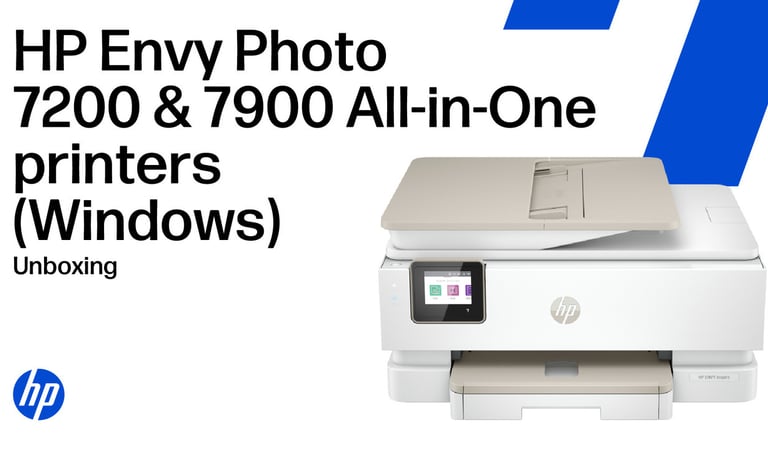
Setting up a new printer can feel overwhelming, but the process is simple when you follow the correct steps. This guide walks you through the safe and proper way to set up HP, Canon, Epson, and Brother printers using official methods recommended by each brand. Always use genuine software and follow the manufacturer’s instructions for best results.
Connecting Your HP Printer
Wi-Fi Setup: Use the touchscreen or control panel to connect to your Wi-Fi network.
USB Setup: Connect your printer to the computer using a USB cable, then complete installation through the software.
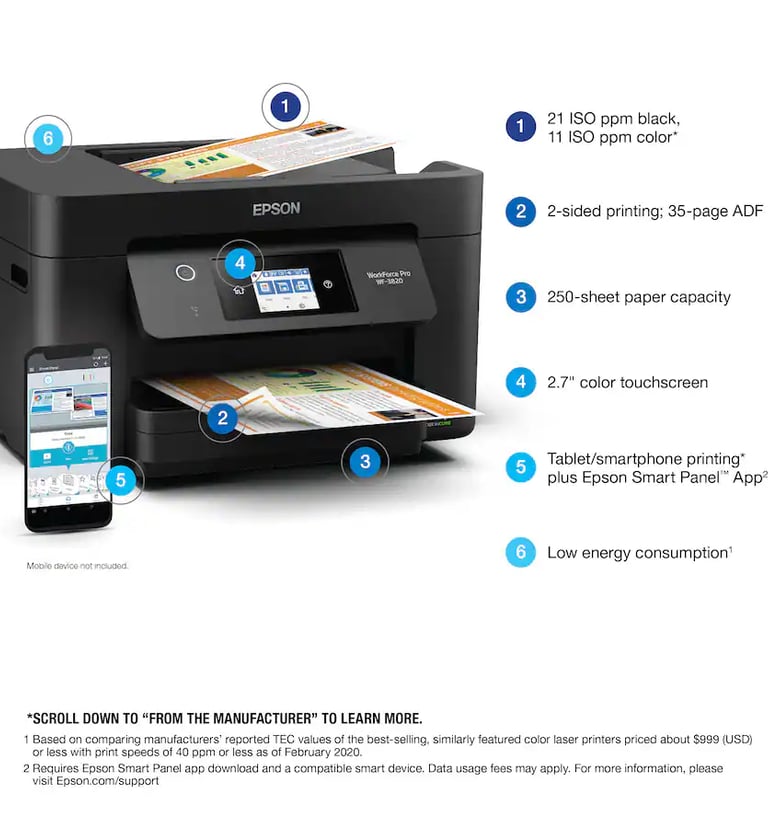


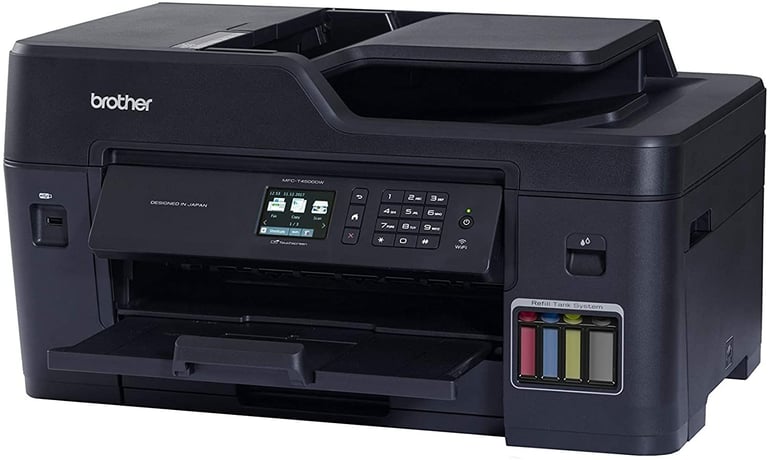
4. Brother Printer Setup
Unboxing & Preparation
Remove tapes and packing materials.
Install toner/ink cartridges and adjust the paper tray.
Power on the printer.
Download Brother Drivers
Use only the official Brother support website for reliable drivers.
Search for your printer model.
Download the latest driver package.
Run the installer and follow the on-screen setup instructions.
Connecting the Printer
For wireless printers, use the control panel to join your Wi-Fi network.
For USB printers, connect the cable when prompted.
Customer Questions
Contact Us


Need help? Book a certified technician for quick printer setup support.
Help
Need quick printer support? Book now.
Contact
support@pcandprinterrepair.com
(888) 337-3508
© 2025. All rights reserved.